Show the Clicks Once: Short Training Videos for Your Shop Team
Explaining the same screen task between customers gets old. Record one safe example, add readable instructions, and give coworkers a clip they can use without you standing beside them.
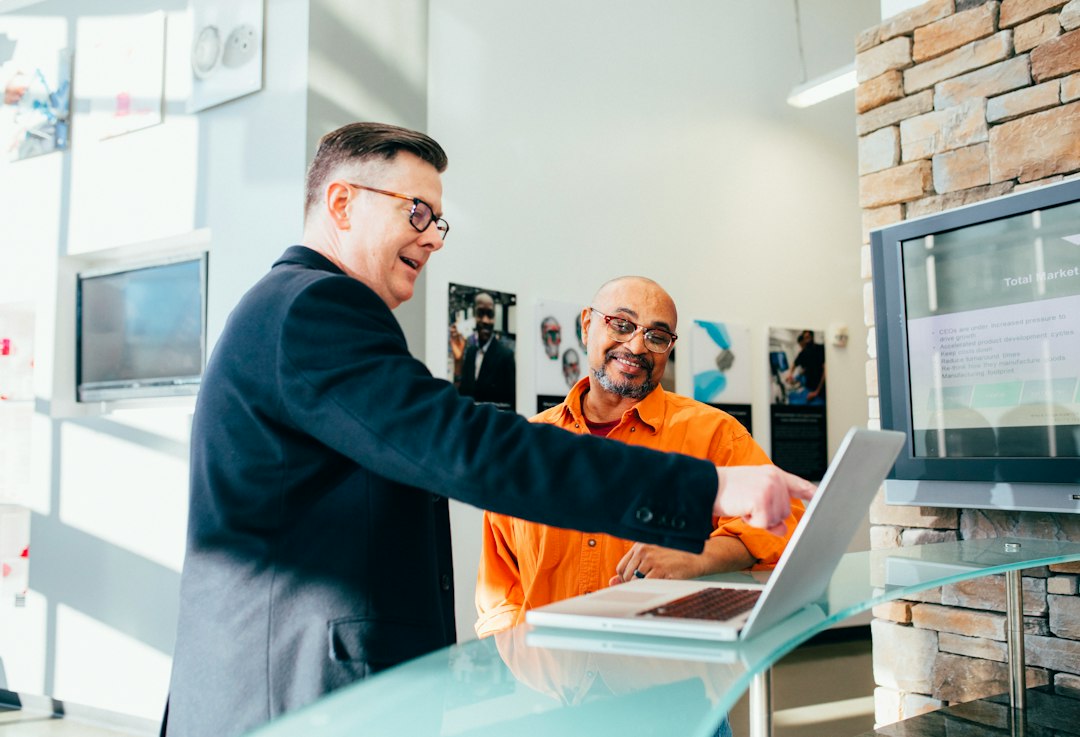
A coworker is preparing a supplier order and calls you over. Which folder has the blank form? Should they copy it first? Where does the finished version go? You explained it on Tuesday, but Tuesday was busy, and someone needed the till halfway through.
A short screen recording can help with that sort of repeat question. It lets someone watch the actual clicks, pause at the awkward part, and try the task themselves. You still need to explain the business rules. The video just saves you from pointing at the same corner of the screen every shift.
Start with one routine job that happens often and is safe to demonstrate. You do not need a training library, a studio microphone, or an opening animation. The shop already has enough things that beep.
Pick a task small enough to show properly
Good first subjects include preparing an order for approval, finding an equipment manual, or saving a finished document in the right folder. Choose something with a clear starting point and a result another person can recognize.
For example, imagine your team uses a blank supplier-order document. A useful clip could show how to find the template, make a working copy, enter a dummy item, and save the copy for a manager to review. Sending the order is a separate job with its own permission check.
That boundary matters. A video called Supplier ordering could wander through stock decisions, delivery schedules, and payment terms. A clip called Prepare a supplier order for review makes a smaller promise that you can actually keep.
Before recording, write one sentence describing the finish: the draft is saved in the review folder and has not been sent. If you cannot describe the result clearly, narrow the task before opening the recorder.
Set up a pretend example, not a real customer file
Use made-up details in a test document or an approved practice area. A real order might contain supplier pricing, account numbers, or contact information that has no place in a reusable staff lesson. The easiest private detail to protect is the one you never record.
Close unrelated tabs and documents. Pause notifications if your workplace settings allow it, then check what will appear when you open a menu or switch windows. A tidy starting screen is helpful, but a notification arriving halfway through can still spoil the take.
Keep passwords, payment information, and recovery codes out of the demonstration entirely. If the task requires signing in, begin after the authorized sign-in is complete. Explain who should request access rather than showing a shared password on screen.
Use only recording, editing, and storage tools your business permits. Before using automatic transcription or another online feature, check whether the business allows the recording to be processed there. Dummy information is still the right starting point.
Record one clean run
If your Windows 11 computer has the recording feature in Snipping Tool, Microsoft's screen capture instructions describe the process. Open Snipping Tool, choose Record, then New. Select the screen area, choose Start, and use Stop when the demonstration is finished. You can also open video capture with Windows logo key + Shift + R.
Choose a recording area large enough to show the menus you need without including the rest of your desktop. Increase the app's zoom if the text is tiny. Make a brief test recording first and play it back at the size your coworker is likely to use.
- Start from the same folder or app screen the learner will see.
- Show the task at a steady pace, pausing briefly after opening a menu.
- Explain any decision that is not obvious from the clicks.
- End by showing the saved result and where to find it.
Aim for roughly one to three minutes as a useful starting limit, not a rule. If the task needs longer, see whether it contains two separate jobs. Do not speed through important steps just to make the timer look good.
If you make a small mistake, you can record again. For a short clip, another clean take may be less work than learning a complicated editor. Avoid recording a real submission, deletion, or payment simply to make the example feel complete.
Explain the decision behind the click
A cursor can show where to press, but it cannot explain why a field stays blank. For the supplier-order example, say that staff prepare the draft while a manager checks quantities before anything is sent. Otherwise, the learner may copy the visible steps without understanding where their authority ends.
Use the same words people see on screen. If a folder is named Orders for review, call it that rather than the pending area. Small differences feel harmless when you know the system. They are less harmless when someone is trying to follow along during a busy shift.
For a practice example: Save the copy in Orders for review. Leave it there for the manager, and do not email it to the supplier yet.
That explanation gives someone a stopping point. Include what to do if their screen differs, too: pause and ask the named person responsible for the process. Guessing should not become an unofficial extra step.
Make the lesson usable without sound
A staff member might watch at a noisy counter or on a device without speakers. Add captions if your recording has spoken instructions, and include a short written version beside the video. A silent recording still needs enough written guidance to explain the choices.
Microsoft's guide to captions for a snip video describes opening a recording with Edit in Clipchamp, choosing Captions, and using Transcribe media with the appropriate language. Follow your business's tool and account rules before using that feature.
Review generated captions yourself. Folder names, product codes, and ordinary shop vocabulary can come out wrong. Check that captions do not cover the button you are demonstrating. If the recording has no narration, automatic transcription cannot supply the missing explanation.
The written companion can be short: where to start, the main actions, what the finished result looks like, and when to ask for help. It also gives staff something to scan when they remember most of the job and only need one detail.
Ask someone else to try it before calling it ready
Give the clip and written steps to a coworker who did not help make them. Ask them to complete the practice task using dummy details. Stay nearby, but resist pointing at the screen before they have had a chance to follow the instructions.
Watch where they pause. If they cannot find the starting folder, the lesson needs a better starting instruction. If they reach the end but save the file in the wrong place, make the destination more obvious. Their confusion is useful feedback about the explanation.
Keep the approved video and its written steps together in your existing staff resource folder, with access limited to the people who need them. Use a descriptive filename and note who owns the instructions and when they were checked. Keep one current version easy to find rather than leaving several nearly identical copies in chat.
When the app layout or business process changes, have that owner review the lesson. Replace an outdated clip if it could lead someone astray. Then try the next shift's repeat question against the recording: can a coworker finish the practice job and recognize where to stop? That is a better measure of usefulness than how polished the video looks.